Printing to the Console
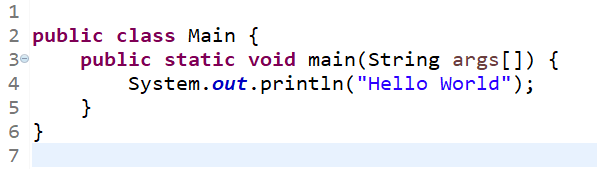
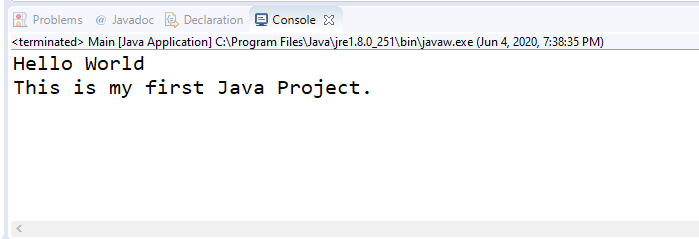
If chances are that if you had to install Eclipse than you might be familiar with "Hello World." However if you aren't, then "Hello World" is the first step to learning java, it is learning how to use the console.
Let's start off by creating a new Java project by right clicking in the Package
Explorer, selecting new, and pressing on the "New Java Project". We will then be
prompted to name our project, let's name it "TheBasics", and press next. We will
then create a new class by pressing on the "Create Class" button. Here is what it
looks like: 
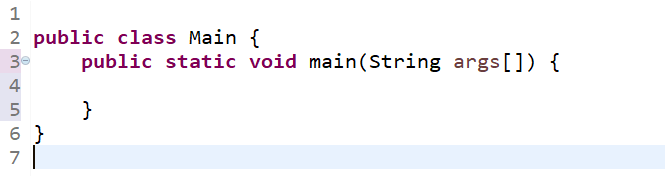
Press the "create class" button and let's name it "Main", If the text is to small you can press crtl + equal sign. You will see that there is some text in the center of the screen, the editor. When you create a new class it should always start off with public class (class name) { }. Inside of the class brackets goes the code you want to write, outside of it are imports and package names.
Press into the editor and let's write our main method, this starts the entire
program. The main method is:
public static void main(String args[])
                        {

}
}